
Cables
Laptop cables are essential accessories for charging, transferring data, connecting displays and using peripherals. Whether you need a USB-C charging cable, an HDMI cable for an external monitor or an Ethernet cable for a more stable internet connection, the right cable can help you get more from your laptop.
Our range of laptop cables includes USB-C cables, USB-A cables, HDMI cables, DisplayPort cables, Ethernet cables and audio cables. They are suitable for home working, study, travel, gaming and connecting your laptop to monitors, TVs, docks and other devices.
Browse our selection of laptop cables below to find the right option for your laptop and setup.
Best Selling Laptop Cables

Which laptop cable do you need?
The cable you need depends on what you want to connect. If you want to charge your laptop, look for a compatible USB-C charging cable. If you want to connect an external display, choose an HDMI or DisplayPort cable. If you need a more reliable internet connection, an Ethernet cable may be the best option.
Before buying, check the ports on your laptop and the device you want to connect. It is also worth checking the cable length, data transfer speed and whether it supports charging, video or both.
| If you want to… | A cable to consider | What to check |
|---|---|---|
| Charge a USB-C laptop | USB-C charging cable | Wattage, cable length and connector type |
| Connect a monitor or TV | HDMI or DisplayPort cable | Supported resolution and refresh rate |
| Transfer files quickly | USB-C or USB-A data cable | Data transfer speed and device compatibility |
| Use a wired internet connection | Ethernet cable | Cable category, length and router compatibility |
| Connect older accessories | USB-A cable | Device compatibility and data transfer speed |
| Connect headphones or speakers | Audio cable | 3.5mm jack size and microphone support |
| Connect a laptop to a docking station | USB-C or Thunderbolt cable | Charging support, video output and data speed |
USB-C cables
USB-C cables are one of the most useful laptop accessories because many modern laptops use USB-C for charging, data transfer and video output. A USB-C cable can connect your laptop to a charger, external monitor, docking station, external drive or other compatible device.
Not all USB-C cables are the same. Some are designed mainly for charging, while others support fast data transfer or video output. If you want to connect a monitor or docking station, check that the cable supports video and the resolution you need.
For charging, check the wattage supported by the cable. A higher wattage cable may be needed for laptops that require more power, especially larger or performance-focused models.
View More USB-C Charger Cables
USB-A cables
USB-A cables are commonly used to connect older accessories, such as mice, keyboards, external drives, printers and some chargers. They can also be useful for transferring files between a laptop and older devices.
If your laptop has USB-A ports, a standard USB-A cable can be a simple and affordable option. If your laptop only has USB-C ports, you may need a USB-C to USB-A cable or adapter.
Check whether the cable supports data transfer, charging or both. Some USB-A cables are designed for charging only and may not transfer data.
View More USB-A Charger Cables
HDMI cables
An HDMI cable connects your laptop to a monitor, TV or projector. It carries both video and audio, making it a convenient option for presentations, streaming, gaming and extending your workspace.
HDMI cables are available in different versions, with newer versions supporting higher resolutions and refresh rates. If you want to connect a 4K monitor or TV, check that the cable supports 4K at the refresh rate you need.
HDMI cables are available in different lengths. Choose a shorter cable for a tidy desk setup, or a longer cable if your laptop needs to reach a wall-mounted TV or projector.
DisplayPort cables
DisplayPort cables are commonly used to connect laptops to monitors, particularly in office and gaming setups. They can support high resolutions and high refresh rates, making them a good choice for detailed work or smooth gaming.
If your laptop has a DisplayPort connection, a DisplayPort cable can connect directly to a compatible monitor. If your laptop uses USB-C, you may need a USB-C to DisplayPort cable or adapter.
Check the supported resolution and refresh rate before buying. This is especially important if you use a high-resolution monitor or need smooth motion for gaming or video editing.
Ethernet cables
An Ethernet cable connects your laptop directly to a router, modem, network switch or wall socket. A wired connection can provide a more stable and reliable internet connection than Wi‑Fi, which can be useful for video calls, online gaming and large downloads.
Ethernet cables are available in different categories, such as Cat5e, Cat6 and Cat6a. Higher-category cables can support faster network speeds and are useful for modern broadband connections and local networks.
If your laptop does not have an Ethernet port, you may need a USB-C or USB-A to Ethernet adapter as well as an Ethernet cable.
Audio cables
Audio cables connect your laptop to headphones, speakers, microphones or other audio equipment. A 3.5mm audio cable is commonly used for headphones and speakers, while a splitter cable can allow separate headphone and microphone connections.
If your laptop has a combined headphone and microphone jack, check whether the cable or adapter supports both audio output and microphone input. Some cables are designed for listening only.
Audio cables can be useful for improving sound quality, connecting external speakers or using a dedicated microphone for calls and recording.
Choosing the right laptop cable
Check your laptop ports
Start by checking the ports on your laptop. Modern laptops often use USB-C, while older models may include USB-A, HDMI, Ethernet or audio jacks. Knowing your available ports will help you choose the right cable.
Check the device connection
Check the connection type on the device you want to connect. A monitor, TV, projector, router or external drive may use HDMI, DisplayPort, Ethernet, USB-A or another connection type.
Check cable length
Choose a cable length that suits your setup. A shorter cable can keep a desk tidy, while a longer cable is useful if your laptop needs to reach a wall-mounted TV, projector or router.
Check data transfer speed
If you transfer large files or use an external drive, check the data transfer speed. USB-C and newer USB standards can offer faster transfer speeds than older USB-A cables.
Check charging support
If you need a cable for charging, check the wattage supported by the cable and charger. A higher wattage cable may be needed for laptops that require more power.
Find the right laptop cable
Laptop cables make it easy to charge your laptop, connect external displays, transfer files and use a more reliable internet connection. Whether you need a USB-C charging cable, an HDMI cable for a monitor or an Ethernet cable for a stable connection, choosing the right cable can improve your setup.
Explore the laptop cables listed above to compare the available options. Each product listing includes key details to help you consider compatibility, cable length, data transfer speed, charging support and video quality. Whether you need a simple charging cable or a cable for a multi-device setup, the right laptop cable can help you stay connected and productive.
Laptop Cables FAQs
Showing all 5 results
-
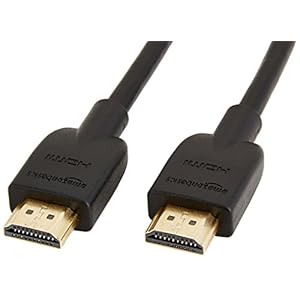
Amazon Basics HDMI Cable, 18Gbps High-Speed, 4K@60Hz, 2160p, Ethernet Ready, 0.9 m, Black
£5.85 Buy product -
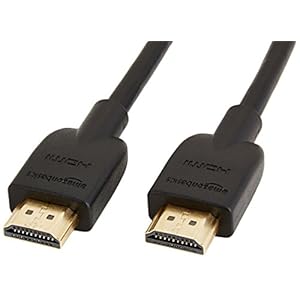
Amazon Basics HDMI Cable, 18Gbps High-Speed, 4K@60Hz, 2160p, Ethernet Ready, 1.8 m, Black
£6.40 Buy product -
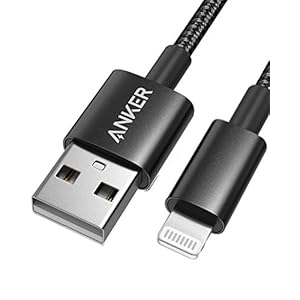
Anker iPhone Charger Cable, 6 ft , 331 Premium Nylon USB-A to Lightning Cable, MFi Certified iPhone
£9.99 Buy product -
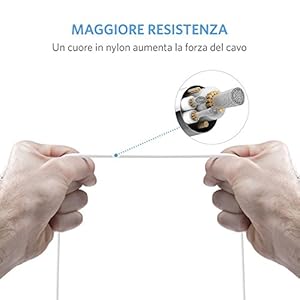
Anker Lightning Cable / iPhone Charging Charger Cable (3ft), MFi Certified for iPhone XS / XS Max /
£15.99 Buy product -
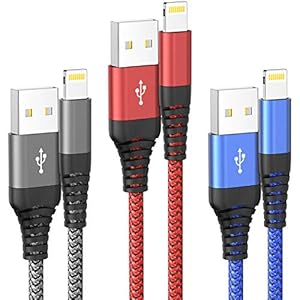
Ofuca iPhone Charger Cable, Lightning Cable 3Pack 6FT/1.8M iPhone Charger Braided Long iPhone USB Fa
£8.89 Buy product